Remote Mouse now supports a new, more resilient way of connecting computers: Bluetooth Connectivity.
This new option is especially useful when Wifi signals are are unstable, cause latency, or are simply unavailable. While Wifi remains our top recommendation connection method due to its stability, hardware compatibility, and wider range, Bluetooth offers a reliable fallback in challenging network conditions.
Controlling a computer with a virtual remote can be a hassle when compared to using a physical mouse and keyboard. This is where Remote Mouse’s specialty control panels come in. These panels are designed to give you quick access to common actions that would otherwise require multiple steps, making computer control on small screens faster and more practical.
One-Tap to Switch, Show, or Hide Panels
Tap an icon on the panel control bar to show a panel. Tap it again to hide it.
The panel control bar is fully slidable, allowing each icon to be large enough to match the size of your fingertips. This makes it easier to perform actions with a single tap, such as shutting down your computer. The sliding design also leaves room for additional panels in the future, ensuring the interface can evolve without becoming crowded.
Customize Your Panel Order
Tap the menu icon on the panel control bar, go to Settings, then select “Change panel order”.
With the latest version of Remote Mouse, you can rearrange the specialty panels and customize your interface to your liking. By placing frequently used panels within easy reach, you can create a more efficient and personalized control layout, tailored to how you use your computer.
In addition to the standard alphabetical keyboard, Remote Mouse provides a Shortcut Bar and a Numeric & Function Keypad. Together, these three input methods cover the full range of shortcuts and key combinations available on a physical keyboard, making it easier to control your computer efficiently from your phone.
The examples below show how Remote Mouse keyboard shortcuts work in real use.
The Shortcut Bar
The Shortcut Bar can be used together with other keyboards and special input panels. It automatically adapts to the connected computer’s operating system, displaying the appropriate keys for Windows or macOS.
The four keys on the left are modifier keys
The three keys on the right provide quick controls
Modifier keys can be combined with either the English keyboard or the Numeric & Function Keypad to send shortcut commands.
Using Keyboard Shortcuts
Because of the limited screen size on mobile devices, shortcut key combinations are entered step by step, rather than pressed simultaneously as on a physical keyboard.
Your phone’s touch screen can handle almost everything a mouse does. With Remote Mouse, touchpad gestures let you control your computer naturally, without relying on on-screen buttons.
Below is a quick guide to the most common touchpad gestures and what they do.
Basic Cursor Control
Move your finger on the touchpad to control the cursor. Tap once to perform a left click.
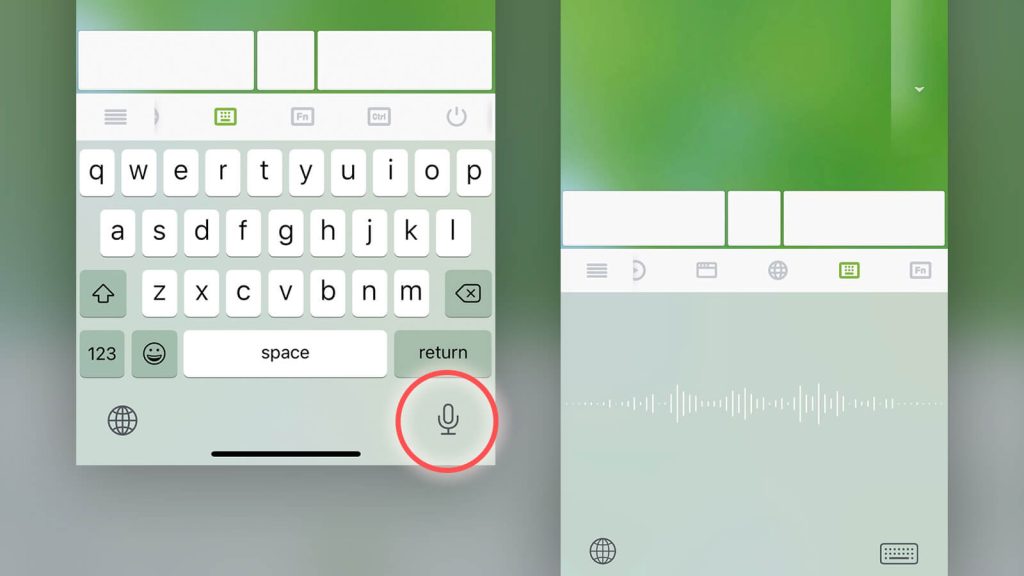
Remote Voice Typing is a convenient and surprisingly powerful way to enter text on your computer using your phone’s microphone. Instead of typing long paragraphs on a physical keyboard, you can simply speak naturally and let your phone handle the transcription in real time.
To get started, tap the voice input icon on the Remote Mouse keyboard and begin speaking into your phone. Your spoken words will instantly appear as text on your computer, making it ideal for quick notes, longer messages, or hands-free input.
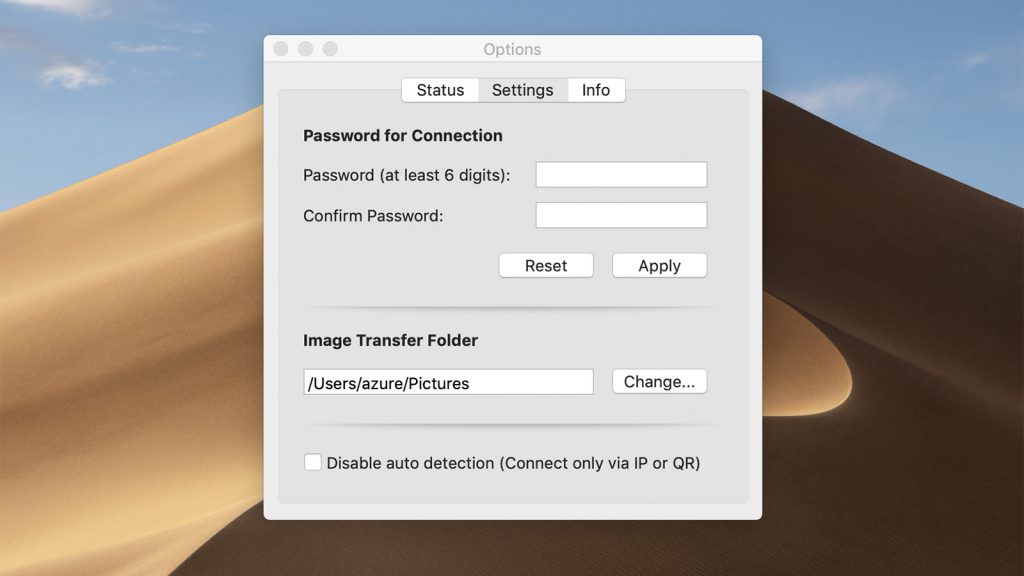
To prevent other Remote Mouse users on the same Wi-Fi network from connecting to your computer without permission, you can set a connection password on the Remote Mouse desktop client.