

Controlling a computer with a virtual remote can be a hassle when compared to using a physical mouse and keyboard. This is where Remote Mouse’s specialty control panels come in. These panels are designed to give you quick access to common actions that would otherwise require multiple steps, making computer control on small screens faster and more practical.
One-Tap to Switch, Show, or Hide Panels
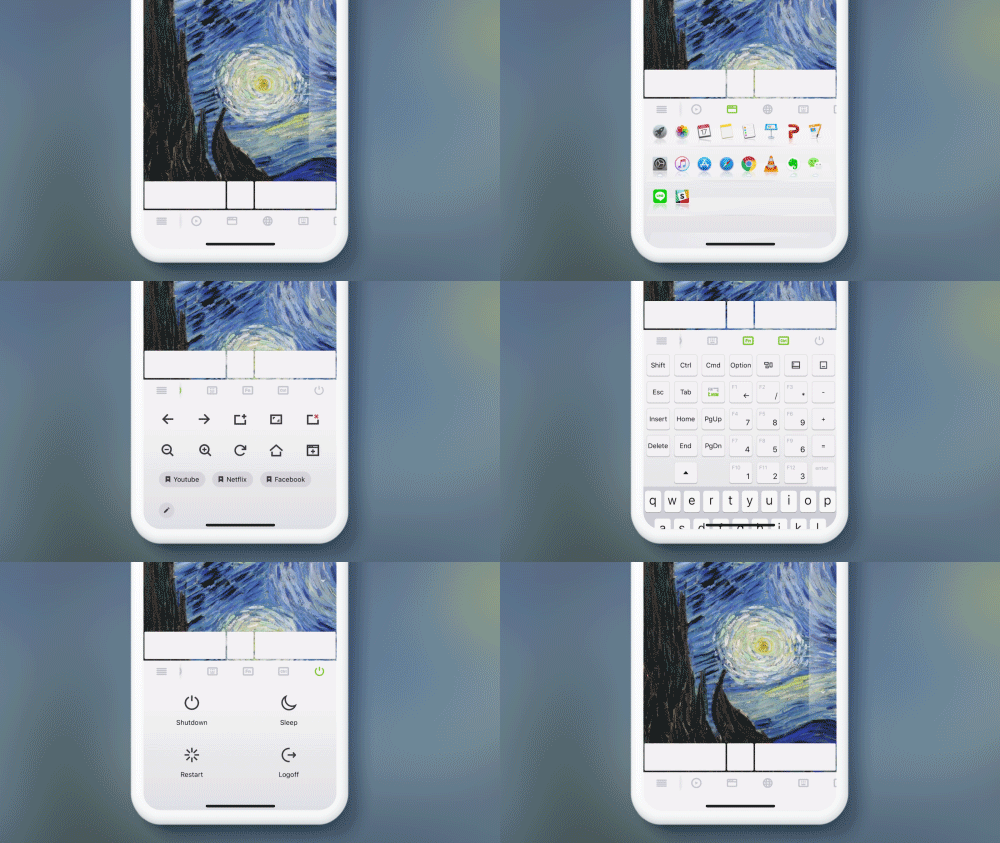
The panel control bar is fully slidable, allowing each icon to be large enough to match the size of your fingertips. This makes it easier to perform actions with a single tap, such as shutting down your computer. The sliding design also leaves room for additional panels in the future, ensuring the interface can evolve without becoming crowded.
Customize Your Panel Order
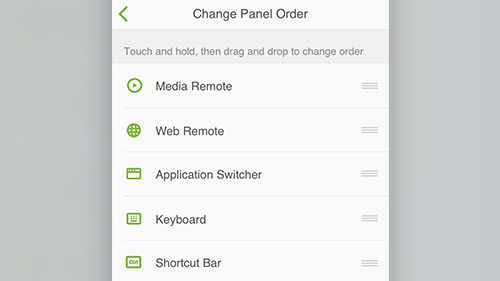
With the latest version of Remote Mouse, you can rearrange the specialty panels and customize your interface to your liking. By placing frequently used panels within easy reach, you can create a more efficient and personalized control layout, tailored to how you use your computer.
